
Get Mass
Overview
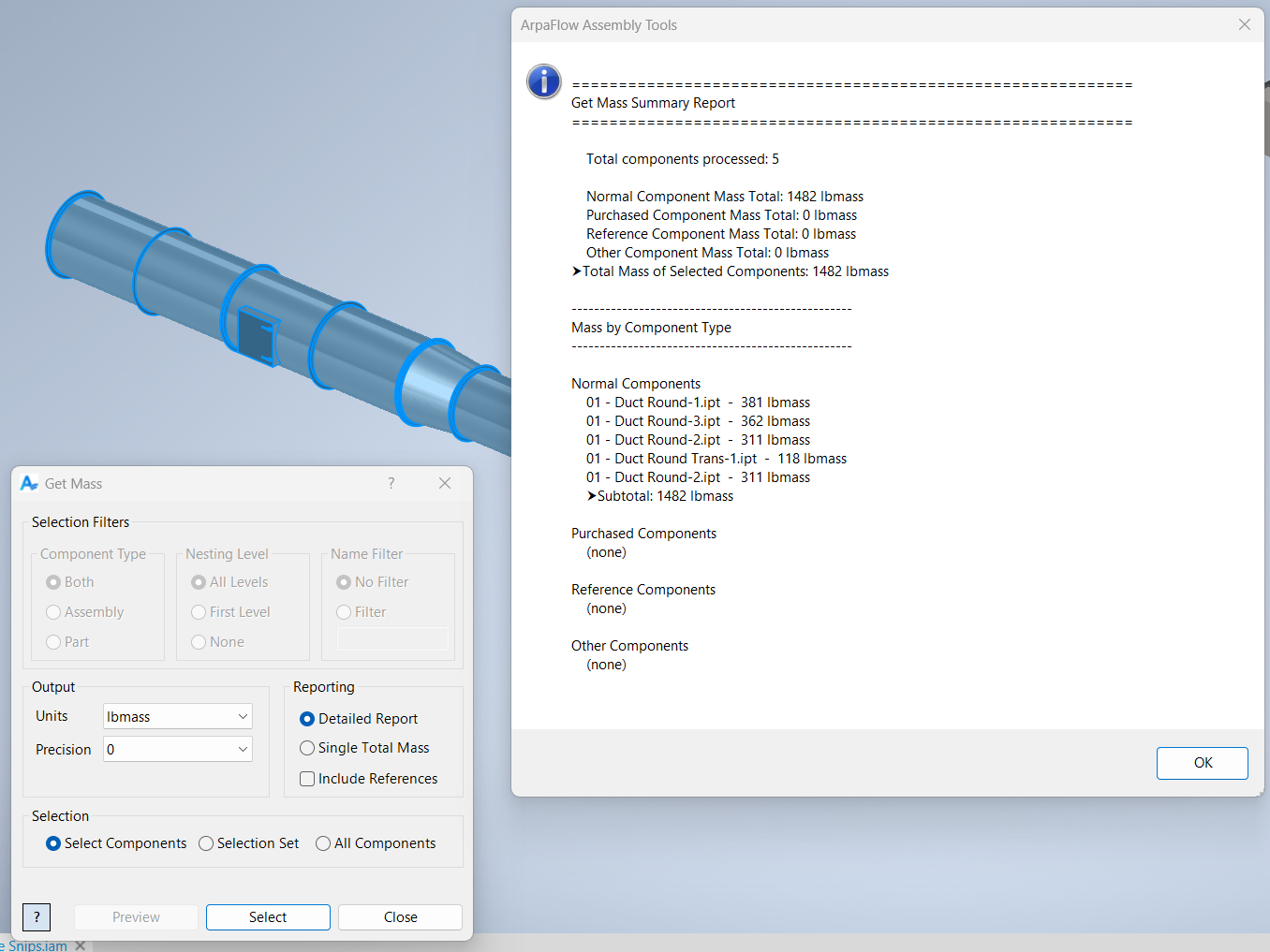
Get Mass calculates the total mass of selected components (and optionally provides a more detailed report grouped by BOM structure). Use it when you need quick weight checks, comparisons between design options, or a lightweight report for documentation.
How It Works
Get Mass processes a set of component occurrences based on the selection mode (Pick, Selection Set, or All) and the common filtering options. For each occurrence, it reads mass properties and accumulates a total mass.
The tool can optionally include reference BOM items, and it can produce either a single total result or a detailed report that breaks down totals by BOM structure (Normal, Purchased, Reference, Other) and lists per-component values.
Context Menus
This command does not provide context-menu pickers. Selection is performed directly in the graphics window (Pick mode) or via selection/filter options.
Usage Instructions
- Open an assembly.
- Start Get Mass.
- Select the output style (single mass or detailed report), units, and precision.
- Choose whether to include reference components.
- Select components using Pick, Selection Set, or All (with filters).
- Click Apply to calculate and display results.
Troubleshooting
- Apply is disabled: If Selection Set mode is selected, ensure the selection set contains components.
- Mass totals are zero or unexpected: Ensure components have valid physical properties (material/density) and that mass properties are up to date.
- Reference items missing: Enable the option to include reference components.
Examples
Example: Get a quick total mass
Select Single Total Mass, choose units and precision, then process the desired component set.
Example: Compare weight of two alternate subassemblies
Run the command twice with different filtered selections and compare the totals.
Example: Generate a breakdown report
Select Detailed Report to list mass values grouped by BOM structure.
Dialog Box Input
You can select components via Pick mode or by using the selection/filter options in the dialog. When complete, the command displays the total mass (and optionally a detailed report) in the specified units and precision.
Samples
See Sample Get Mass for an example, and Samples Summary for where sample files are installed.
